
Five minutes in Meta Business Suite. You request access to the Peach app with our App ID, we approve it, and you're connected.
Peach connects to Meta so the leads from your Facebook and Instagram ads land in Peach the moment they come in, and so the jobs those leads turn into get reported back to Meta. Before any of that can happen, the Peach app has to be linked to your Meta business portfolio. That part happens on your side, and it takes about five minutes.
You only do this once. Everything you need, including the Peach App ID, is below.
Before you start
- A computer. Meta's business settings are much easier to use on desktop than in the phone app.
- The Facebook login you use to run your business's Facebook Page or ads.
- Full control (admin) of your business portfolio. Not sure? Just try the steps. If the Add button is greyed out or missing, you don't have it yet, and the FAQ below covers what to do.
- The Peach App ID: 1712654296838548
Step 1 · Sign in to Meta Business Suite
- Go to business.facebook.com and log in with your Facebook account.
- If you manage more than one business, use the business switcher in the top-left corner to pick the one that owns your Facebook Page and ad account.
Step 2 · Open Business settings
In the left-hand menu, click the gear icon labelled 'Settings'. That takes you to Business settings. You can also skip the menus and go straight to business.facebook.com/settings.
Step 3 · Go to Accounts, then Apps
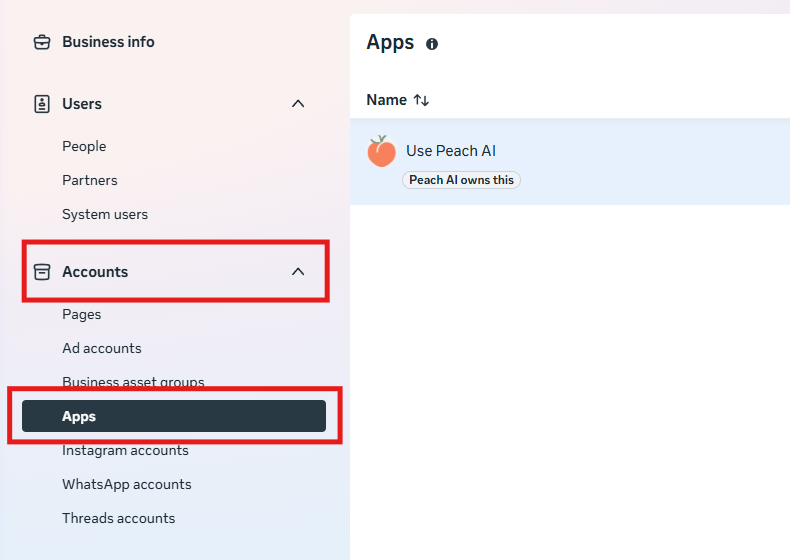
In the Business settings menu on the left, click 'Accounts' to expand it, then click 'Apps'. You'll see a list of the apps already linked to your business. It may be empty, which is fine.
Step 4 · Click '+ Add'
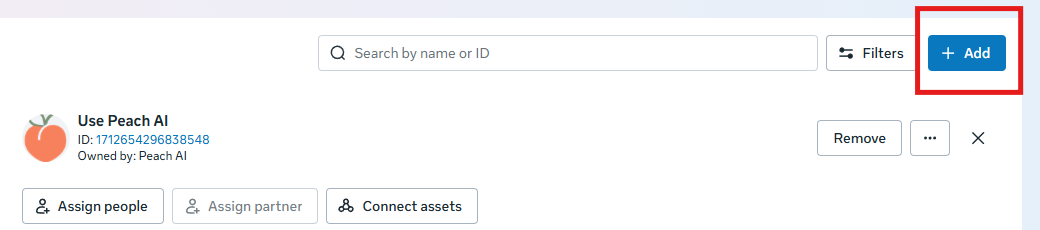
The blue '+ Add' button sits in the top-right corner of the Apps screen.
Step 5 · Choose 'Request access to an app ID'
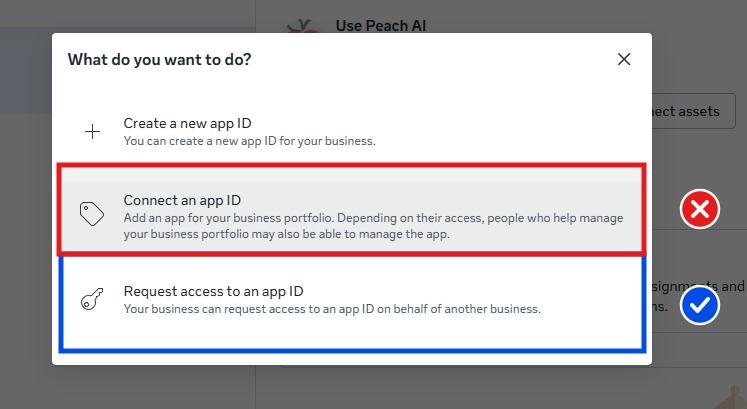
A box opens asking 'What do you want to do?' with three options. Choose the last one, 'Request access to an app ID'.
Step 6 · Enter the Peach App ID and click 'Request app'
In the 'Request an app' box, paste the Peach App ID below into the App ID field, then click 'Request app'.
1712654296838548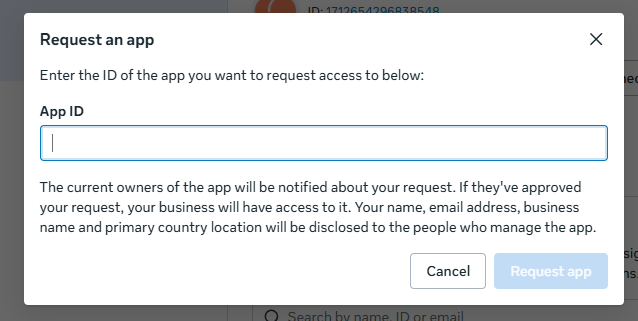
As the box says, Meta shares your name, email address, business name, and country with Peach when you send the request. That's how we know whose request we're approving.
Step 7 · Let us know you're done
Your request comes to Peach to approve. Reply to the email this guide came in, or write to support@usepeachai.com, and we'll approve it on our side. Once we do, 'Use Peach AI' shows up in your Apps list, owned by Peach AI, and we take it from there.
Curious why reporting booked jobs back to Meta matters? Our guide to offline conversion tracking covers it.
FAQ
The '+ Add' button is greyed out, or I can't find Business settings.
Adding apps needs full control of the business portfolio. Ask whoever set up your business on Facebook (often the owner, an office manager, or a past marketing agency) to either run through these steps or give you full control under Users, then People.
I have more than one business portfolio. Which one do I use?
The one that owns the Facebook Page and ad account you run your ads from. If you're not sure, send us a screenshot of your business switcher and we'll tell you.
I got an error when I entered the ID.
Check two things: that you chose 'Request access to an app ID' (not 'Connect an app ID'), and that the ID is exactly 1712654296838548 with no spaces. Still stuck? Screenshot the error and send it over.
Does this give Peach control of my Page or ad account?
No. On its own, this step doesn't give Peach access to your Page, your ad account, or your ads. Those get connected separately, and you stay in control: you can remove it at any time by selecting 'Use Peach AI' on the same Apps screen and clicking 'Remove'.
My screen doesn't match these steps.
Meta renames and moves these menus every so often. If a label doesn't match, send us a screenshot of what you see and we'll point you to the right place.